Local LLMs 23 Nov 2026
Running Inkling-2-Mini on an RTX 4090 with llama.cpp
Last week Thinking Machines Lab released Inkling-2-Mini. Since its release it has been getting a lot of attention (rightly so!). Firstly, because it is the best model you can run on your local machine with as little as ~12 GB VRAM, sort of dethroning Qwen3.8-27B as the go-to local model. Secondly, because it is a sparse MoE model with 26.4B total parameters and 3.4B active (~5.4B effective active parameters per token to account for looping). Local inference is mostly memory-bandwidth bound, so only activating a small fraction of the weights per token gives you the best of both worlds: the capability of a ~26B model at the generation speed of a much smaller one.
I can genuinely say that it is the best local model since Qwen3.8 and honestly I can even go as far as saying that it feels on par with Claude Sonnet 5.5 to me.
In one of my earlier posts this year, I walked through deploying a local model on a 24 GB GPU on my RTX 4090 workstation and using it from my Mac. I followed the same approach here, though I am using the Unsloth desktop app instead of OpenCode. It is a great app for local LLM inference, very easy to set up and switch between models. I would highly recommend giving it a try. If you like, you can also hook it up to OpenCode like in my Qwen post, though I have not tried it there yet.
Inkling-2-Mini supports up to a 1M token context window but on a 24 GB card VRAM decides how much you actually get. Before settling on a daily setup for coding agents, I wanted to find the best context length and server settings for a 4090 with acceptable performance. This is a quick post walking through what I tested and the configs I ended up with.
Benchmarking
When deploying a coding model on 24 GB of VRAM, three things decide whether it feels good to use:
- Max usable context: how much context fits in VRAM without running out of memory mid-session.
- Time to first token (TTFT): how long you wait for the model to read your prompt and start replying.
- Generation speed (tok/s) at long context: how fast it writes code as the session grows, especially once you pass 64K-100K tokens.
In llama.cpp there are a few flags you end up tuning to balance speed against context size:
- KV cache precision (16-bit vs 8-bit): By default llama.cpp uses a 16-bit KV cache. Switching to 8-bit (
--cache-type-k q8_0 --cache-type-v q8_0) roughly cuts KV cache memory in half so you can fit a lot more context on the same card. - Speculative decoding (DSpark draft model): If a model supports MTP or has a draft model available, you can use speculative decoding to speed up generation. For Inkling-2-Mini there is a tiny 0.4 GB DSpark draft model so I tested it here. It gives a nice speed boost on shorter contexts but costs some vram and adds overhead once the context gets large.
- Micro-batch size (
-ub): This controls how many prompt tokens hit the GPU at once during prefill. On an 8K prompt-ub 512was the sweet spot at ~3,000 tok/s while going higher slightly slowed prefill down and cut into usable context. - Concurrent slots (
--parallel): Each slot splits your vram and throughput. Since I am running on a single 24 GB card and is the only person using this server, it is always best to set it to--parallel 1.
Benchmark results
Note (24 Nov 2026): These benchmarks were run on Unsloth’s
b12631-mix-acc0843build, one release before their 23 Nov update (b12649-mix-c7059d6). The newer build brings faster decoding and a Q8_0 KV cache fix so you should expect better speeds if you follow their guide today. I might rerun these benchmarks on the newer build later.
All numbers below are from single runs on my RTX 4090, using slices of real C++ source code (from the llama.cpp repo) to fill the context instead of synthetic dummy tokens.
How much context fits on 24 GB
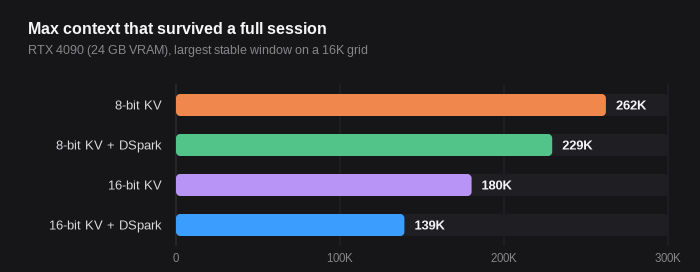
Testing a single prompt can trick you on 24 GB: with a 16-bit KV cache the server took one 196K prompt, then ran out of GPU memory later in the session. The chart above shows the largest context that actually survived a full multi-turn session.
Switching to an 8-bit KV cache pushes usable context from 180K to 262K tokens while DSpark trades away roughly 30-40K tokens of vram headroom on either cache type.
Time to first token (TTFT)
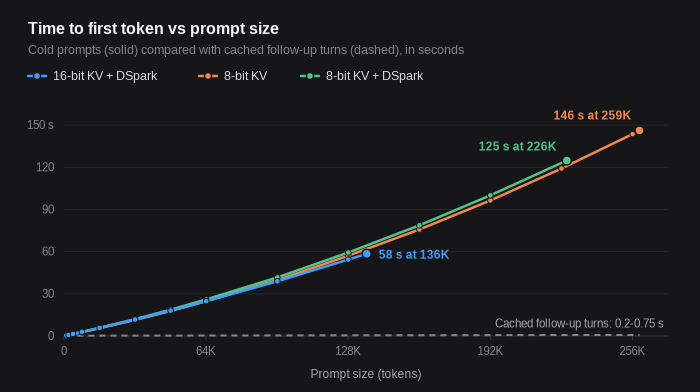
Each line stops where that setup runs out of VRAM, and all three track almost identically until then. In a 12-turn tool calling session starting at 41K tokens, only the first cold turn felt slow (15.8 s) while turns 2-12 reused the prompt cache and finished in a median of 1.6-1.9 s.
Cold time to first token depends almost entirely on prompt size and barely changes across setups, while cached follow-up turns stay under 1 s at every depth.
Code generation speed as context grows
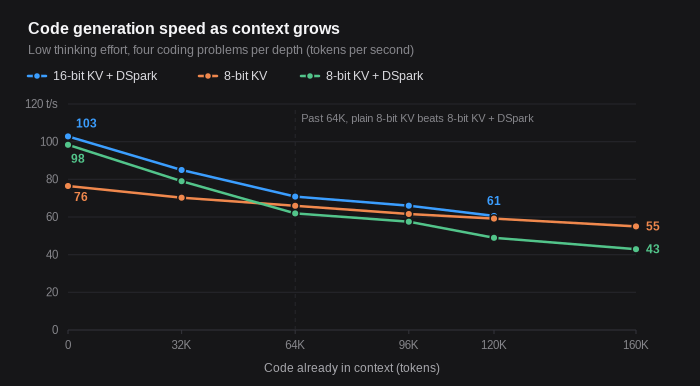
To see how generation holds up in a real coding session, I asked four coding questions behind 0 to 160K tokens of code at low thinking effort. On short prompts DSpark makes a clear difference, though that lead shrinks as context grows and by 120K both 16-bit KV + DSpark and plain 8-bit KV are basically tied. The surprise was 8-bit KV + DSpark: you might expect the best of both worlds, but past 64K it actually falls behind plain 8-bit KV.
DSpark gives a ~30% speed boost on short contexts but on an 8-bit KV cache it actually falls behind plain 8-bit KV past 64K.
Thinking effort and tool calls
A couple of smaller things came up while testing that are worth knowing before you set this up:
- Keep
--reasoning-effort lowas the default: In my tests,lowkept replies snappy while still letting any client bump it up with"reasoning_effort": "high"when needed. Not sure but setting effort tononestill made the model think and was actually slower thanlowand--reasoning-budget 0broke tool calling pretty badly. - Switching effort mid-session clears the prompt cache once: Changing thinking effort partway through a 40K toks session made the server reread the whole history
Possible configuration options
Putting all of that together, here are the three configs that make sense on a 24 GB card:
| Config | Setup | Context | Speed at 0 / 64K / 120K / 160K (tok/s) | Peak VRAM |
|---|---|---|---|---|
| Fast | 16-bit KV + DSpark | 131K | 103 / 71 / 61 / n/a | 22.6 GB |
| Long context | 8-bit KV | 262K | 76 / 66 / 59 / 55 | 22.4 GB |
| Balanced | 8-bit KV + DSpark | 196K | 98 / 62 / 49 / 43 | 23.2 GB |
Honestly, for most people the real choice is between the first two:
- Fast (131K) is what I am running right now. It is the fastest setup as long as your sessions stay under roughly 64K tokens and it still matches Long context (262K) at 120K.
- Long context (262K) is what you should pick if your sessions regularly go past 131K tokens. Just keep in mind that a cold 256K prompt takes around 144 s before the first token shows up.
- Balanced (196K) really only makes sense if you do not want to restart the server and want both >131K context and fast replies on short prompts. On raw speed it is slower than Fast (131K) at every depth, slower than Long context (262K) past 64K and leaves the least VRAM spare.
Running it with llama.cpp
To install Unsloth’s llama.cpp build and download the UD-Q4_K_XL quant (17.6 GB) and Q8_0 DSpark drafter (0.4 GB), follow the steps in Unsloth’s Inkling-2-Mini guide. Once that is set up, here is the final config I am using (Fast, 131K context):
BIN=~/llama.cpp-unsloth/b12631
MODELS=~/MODELS/unsloth/Inkling-2-Mini-GGUF
export LD_LIBRARY_PATH="$BIN:${LD_LIBRARY_PATH:-}"
$BIN/llama-server \
  -m $MODELS/Inkling-2-Mini-UD-Q4_K_XL.gguf \
  --model-draft $MODELS/dspark-Inkling-2-Mini-Q8_0.gguf \
  --spec-type draft-dspark --spec-draft-n-max 2 --n-gpu-layers-draft 99 \
  -c 131072 -ub 512 -ngl 99 -fa on --parallel 1 --jinja \
  --reasoning-effort low \
  --temp 1.0 --top-p 1.0 --top-k 0 --min-p 0.0 \
  --alias inkling-2-mini \
  --host <YOUR_GPU_SERVER_IP> --port 8080 \
--no-slots --no-webui- If you want Long context (262K) instead, drop the
--model-draftand--spec-typelines, add--cache-type-k q8_0 --cache-type-v q8_0and change-cto262144. - If you want Balanced (196K), keep the DSpark flags, add the same 8-bit cache flags and set
-c 196608.
All three configs leave only 0.8-1.6 GB of VRAM free, so try not to run anything else heavy on the GPU at the same time 🙈.